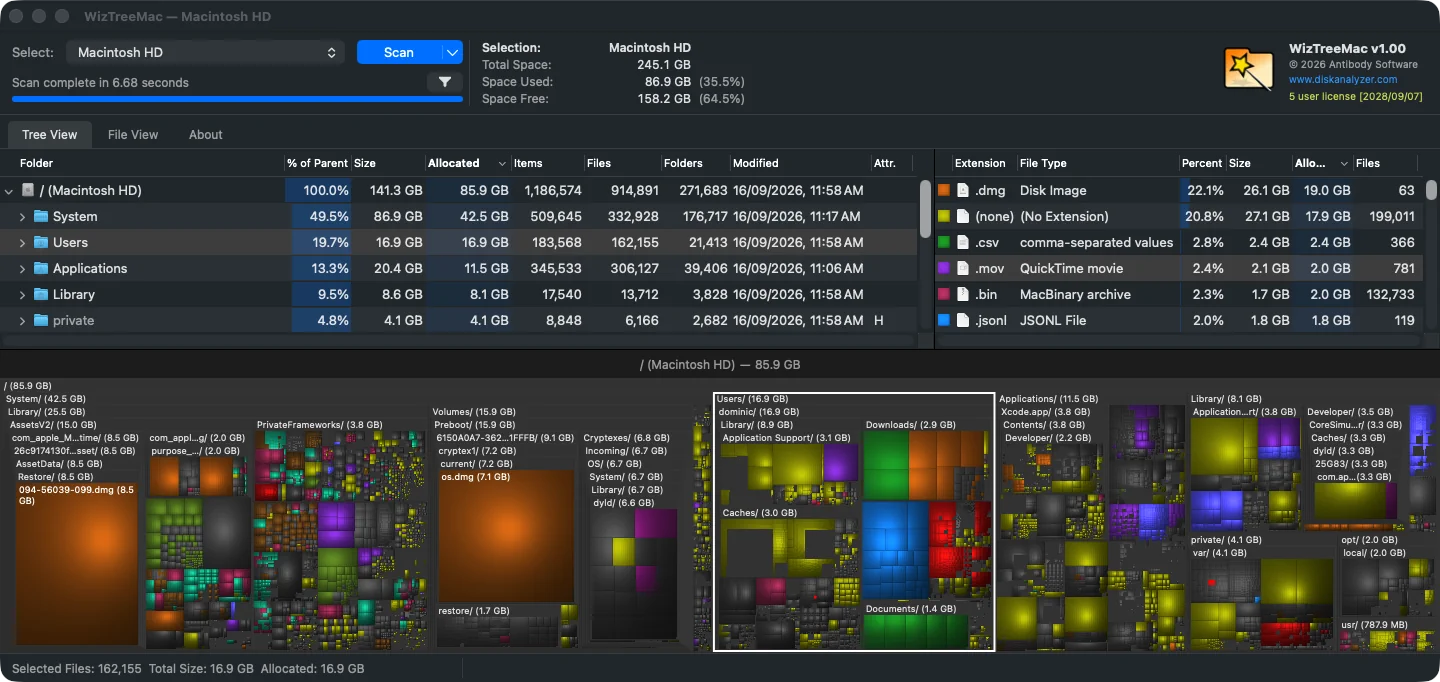
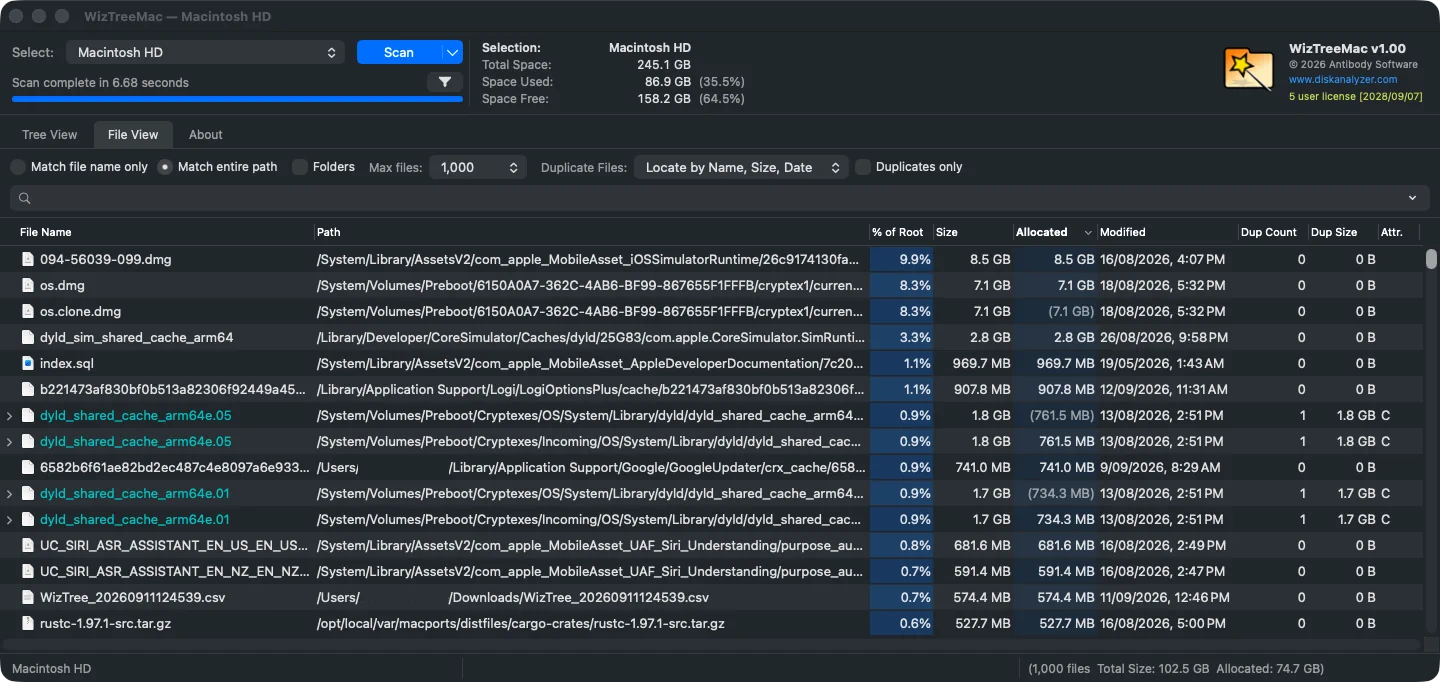
WizTreeMac can be downloaded from our downloads page.
Antibody Software is proud to announce WizTreeMac - the official port of WizTree for macOS. We have worked hard to make the macOS version as faithful to the Windows version as possible. If you've already used WizTree on Windows you'll feel right at home with WizTreeMac.
WizTreeMac has its own version numbering and the first release is v1.00. WizTreeMac 1.00 is based on the functionality of WizTree 4.33. WizTreeMac contains almost all of the functionality and features of the Windows version. Supporter Codes (license keys) will work on both Windows and Mac versions, you don't need to purchase a new license for your Mac if you already have one.
A few things work differently due to platform differences between Windows and macOS and these differences are listed below.
| Area | Windows (WizTree) | Mac (WizTreeMac) |
|---|---|---|
| Scan technology | Reads the NTFS Master File Table (MFT) directly for the fastest possible scan (requires Admin rights). Falls back to Windows API scanning for non NTFS drives and when admin rights not available. Uses multiple scanning threads for maximum speed. | Uses macOS's native bulk directory enumeration API with multiple scanning threads for maximum speed. There's no MFT-equivalent low-level structure on APFS/HFS+. |
| Administrator access | A single “Run as Administrator” (UAC) elevation unlocks both full filesystem access and MFT scanning | Two separate permissions: Full Disk Access (granted once per Mac in System Settings) for reading protected folders, and a separate Restart as Administrator option for root-level access. Click on the Scan button's drop down arrow to select and activate Admin mode. A shield symbol will appear on the Scan button when running in Admin mode. |
| Portable/USB drive mode | Triggered by detecting the app isn't running from Program Files folder. Portable version keeps config file in same folder as exe. | Triggered by detecting the app is running from a removable/external volume. To make WizTreeMac portable, double click the WizTreeMac DMG file and drag the WizTreeMac icon into a folder on a removable device instead of Applications. Config data will be stored in "WizTreeMac Data" folder created as a sibling of the .app on the same device. |
| Mobile device scanning (MTP) | Can scan MTP-connected devices such as Android phones | Not yet supported |
| Command-line parameters | /name=value or /name="value with spaces" syntax, e.g. /sortby=1 /exportfiletypes="c:\temp files\out.csv" |
--name=value or --name="value with spaces" syntax, e.g. --sortby=1 --exportfiletypes="/temp files/out.csv" |
| Path Separator | Windows uses a backslash (\), e.g. c:\Users\name\Documents Typing a backslash into a search filter will automatically cause the entire file path to be searched even if the "Match File name only" mode is selected. |
MacOS uses a forward slash (/) , e.g. /Users/name/Documents Typing a forward slash into a search filter will automatically cause the entire file path to be searched even if the "Match File name only" mode is selected. |
| Regular Expression Search/Filter | Use a forward slash (/) to indicate a regular expression search. e.g. /^a(.*)\.txt or if it contains spaces /"good (morning|evening)\.dat" |
Use a backslash (\) to indicate a regular expression search. e.g. \^a(.*)\.txt or if it contains spaces \"good (morning|evening)\.dat" |
| File Attributes | Windows supports (R)ead Only, (H)idden, (S)ystem, (A)rchive, (C)ompressed | macOS supports (R)ead Only, (H)idden, (C)ompressed. There is no System or Archive equivalent. |